
Introduction
If you’ve ever imagined a cinematic portrait of yourself giving a powerful speech in front of a huge crowd, this Gemini AI prompt can turn that dream into a stunning, lifelike image.
This guide explains how to use Gemini AI (and other image tools like Midjourney or Leonardo AI) to generate a 16K ultra-realistic photo of a confident young speaker — based entirely on your real face, with 100% accurate features.
The Full Gemini AI Prompt
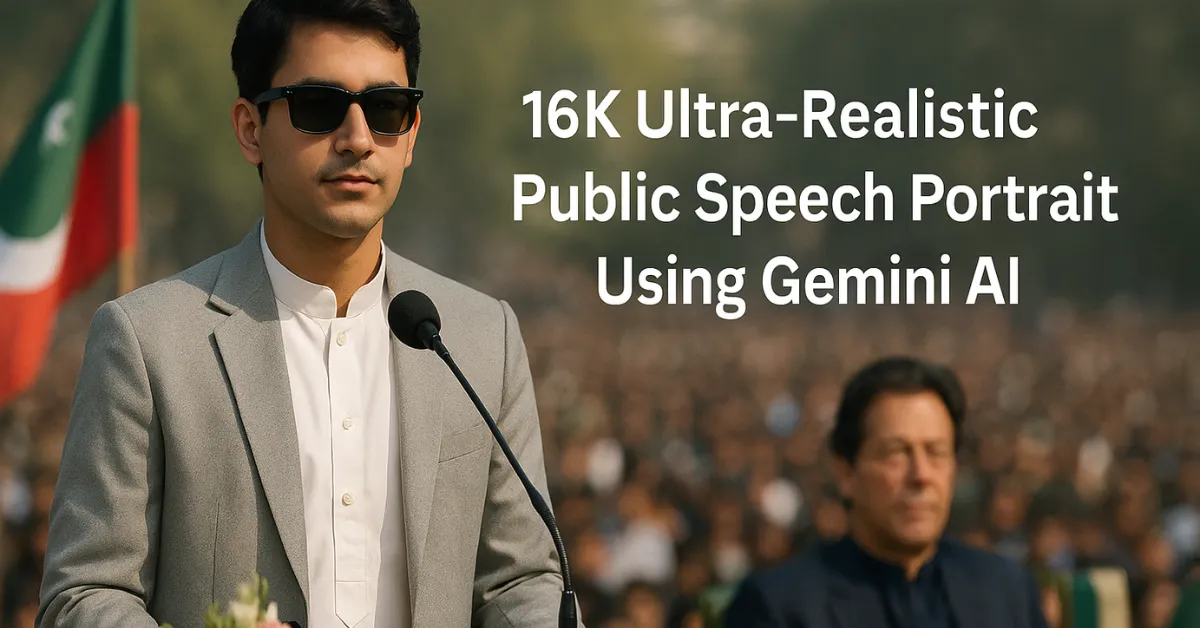
“16K ultra-realistic image of a boy using the provided face reference (100%, do not change facial features). He is wearing a white shalwar kameez with a light blazer and black sunglasses, giving a speech at a microphone while standing confidently next to a desk decorated with flowers on an outdoor stage. No banner in the background, only a large audience visible. The young man has a calm expression, lips closed, and hair slightly grown (normal length) as in the reference image. Full-frame shot emphasizing realism, lighting, and the prominence of the speaker. On the right side, PM Imran Khan is seated on a chair. On the left, the Pakistan Tehreek-e-Insaf flag and Pakistan flag are placed. Do not change the face.”
What This Prompt Creates
This prompt generates a high-resolution 16K cinematic portrait — a realistic public-speaking moment with an authentic South Asian aesthetic.
It captures not only the subject’s confidence but also cultural realism, lighting accuracy, and crowd depth.
Key Scene Details:
-
Subject: You (using your reference face, unchanged)
-
Outfit: White shalwar kameez with light blazer
-
Accessories: Black sunglasses
-
Setting: Outdoor political-style stage
-
Elements: Microphone, flower-decorated desk, large audience
-
Lighting: Natural daylight with cinematic focus
-
Tone: Confident, calm, and inspiring
How to Use This Prompt in Gemini AI
Step 1: Open Gemini
Visit https://gemini.google.com and sign in with your Google Account.
Step 2: Upload Your Reference Face
Upload a clear, front-facing photo of your face. Make sure:
-
The image is high-resolution
-
Your face is fully visible with good lighting
-
No filters or heavy shadows
Then type this in the chat box:
“Use this face for the next prompt exactly as it is. Do not alter facial features.”
Step 3: Paste the Prompt
Copy and paste the full 16K cinematic prompt (above) directly after that.
Gemini will recognize your uploaded face and keep it identical in the final render.
Step 4: Refine the Image
Once Gemini generates the image, you can type:
-
“Enhance fabric texture and lighting.”
-
“Increase focus on the speaker.”
-
“Add depth to audience details.”
You can also download the image in 16K Ultra HD by saving it in .webp or .png format for maximum quality.
Optional: Using Midjourney or Leonardo AI
Midjourney
If you prefer Discord-based generation:
Leonardo AI
Go to Leonardo.ai.
-
Paste the full prompt
-
Upload your reference face
-
Choose Cinematic Portrait model
-
Set resolution to 16K (or 4096×2160 minimum)
-
Select Photo Realism + Lighting Balance
Generate and adjust sharpness or tone if needed.
Tips for Realistic Results
Use a high-quality reference face photo (minimum 1024×1024).
Mention “do not change the face” twice to ensure identity accuracy.
For natural light, add: “Soft sunlight, realistic shadows, DSLR depth of field.”
Use Gemini Advanced for better texture and face detail preservation.
Also Read: Create a Realistic South Asian Tea Stall Portrait with AI – Step-by-Step Guide ( Gemini )
Why This Prompt Works
This prompt merges personal realism with cinematic storytelling. It respects identity while creating a heroic, confident moment — something perfect for:
-
Portfolio visuals
-
Social campaigns
-
Public speaker branding
-
Realistic AI art showcasing South Asian culture